
One backup. Four ways to use the messages.
Create or open a local iPhone backup in MessageHarvest, choose a conversation and date range, then select an export format. You need an Apple Silicon Mac running macOS 12 or later. If this is your first export, follow the complete backup-to-export walkthrough.
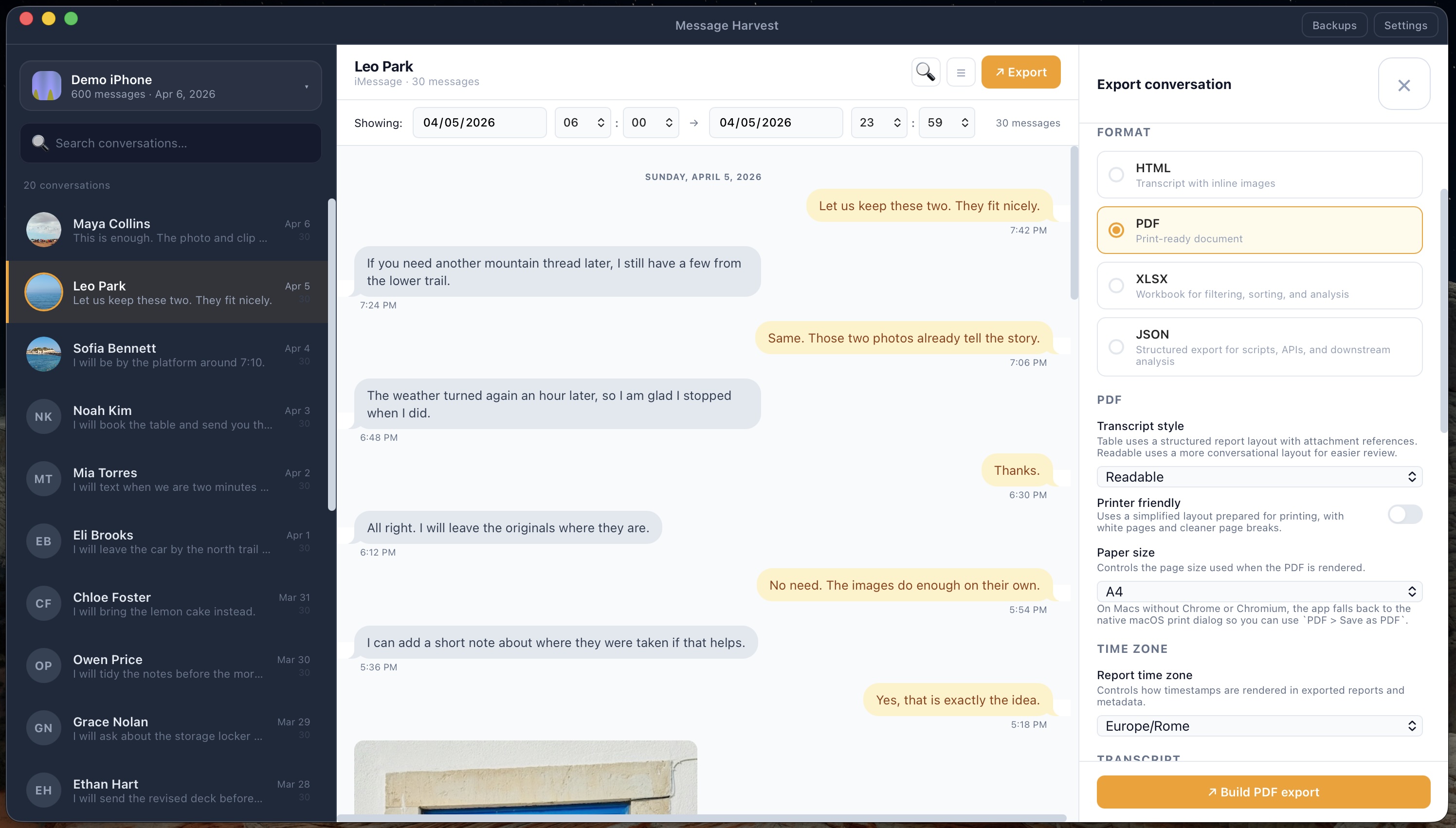
Open a sample before installing.
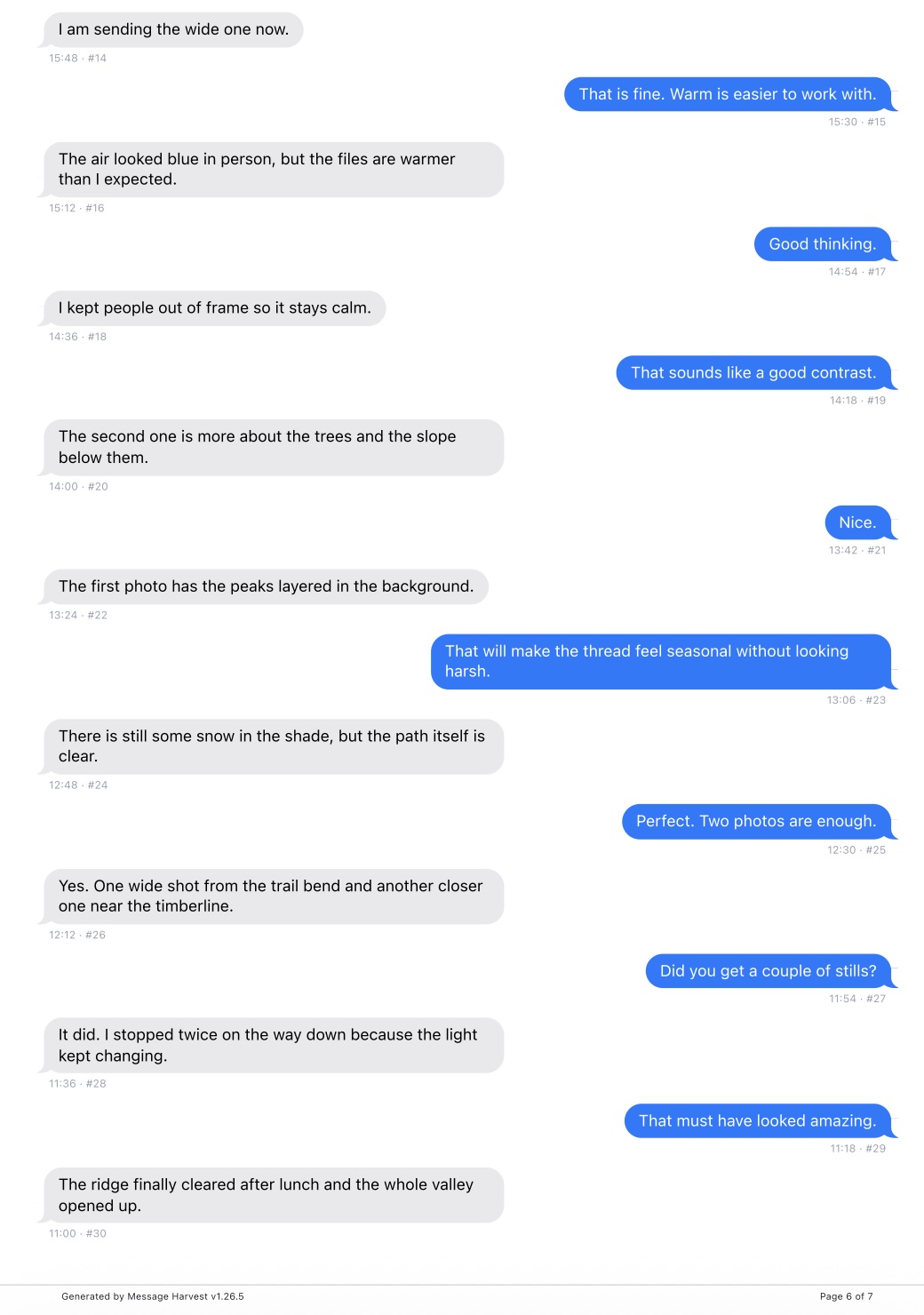
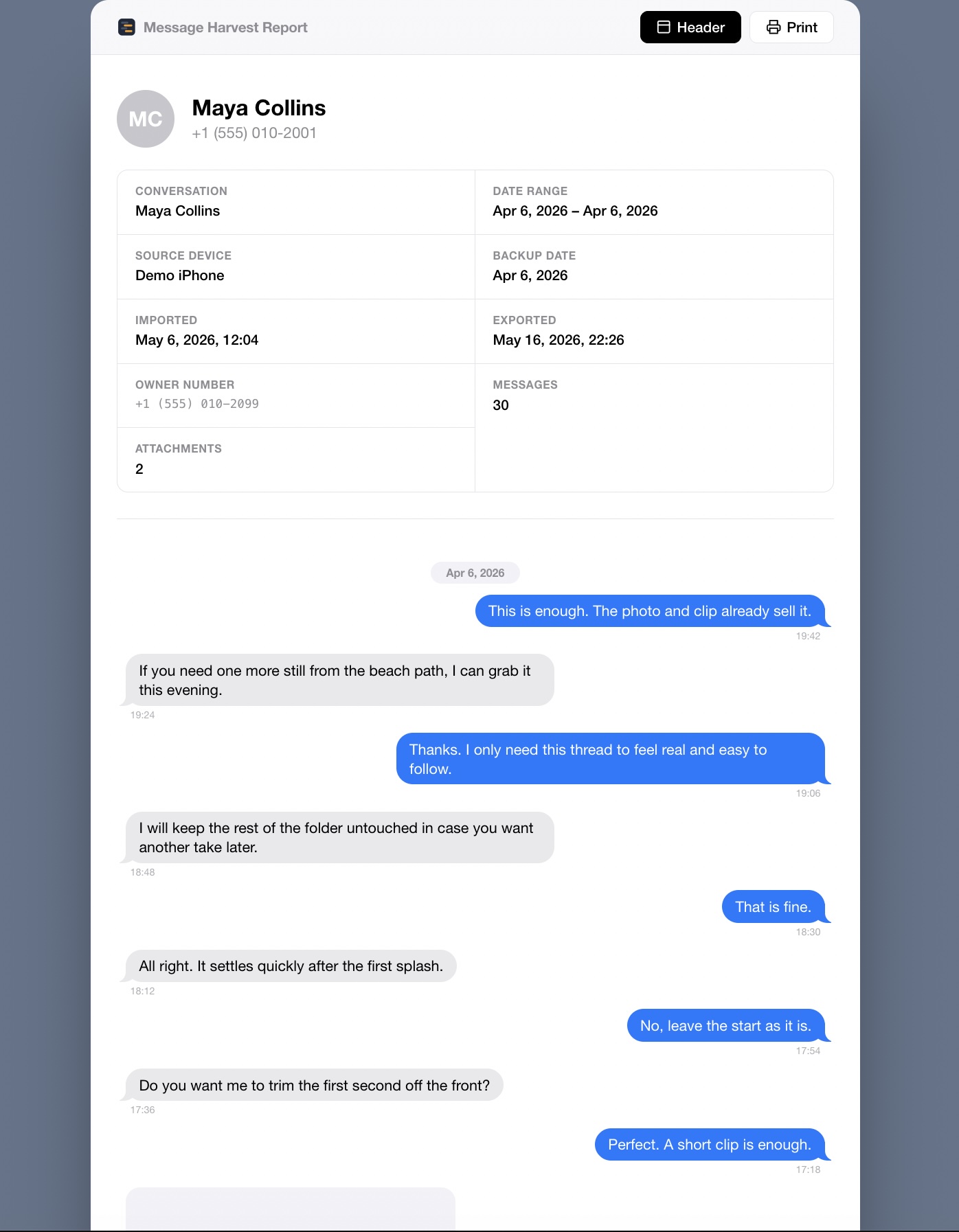
An archive you can browse
Open a conversation in your browser with retained media.
Explore sample HTMLThese examples use a generated demo backup. Your export depends on the messages and attachments present in your backup.
Which format should you choose?
| Format | Choose it for | Open it with |
|---|---|---|
| A fixed document for sharing, printing, or review | Preview or a PDF reader | |
| HTML | A readable conversation archive with retained media | A web browser |
| XLSX | Sorting and filtering message records in a spreadsheet | Excel or another compatible spreadsheet app |
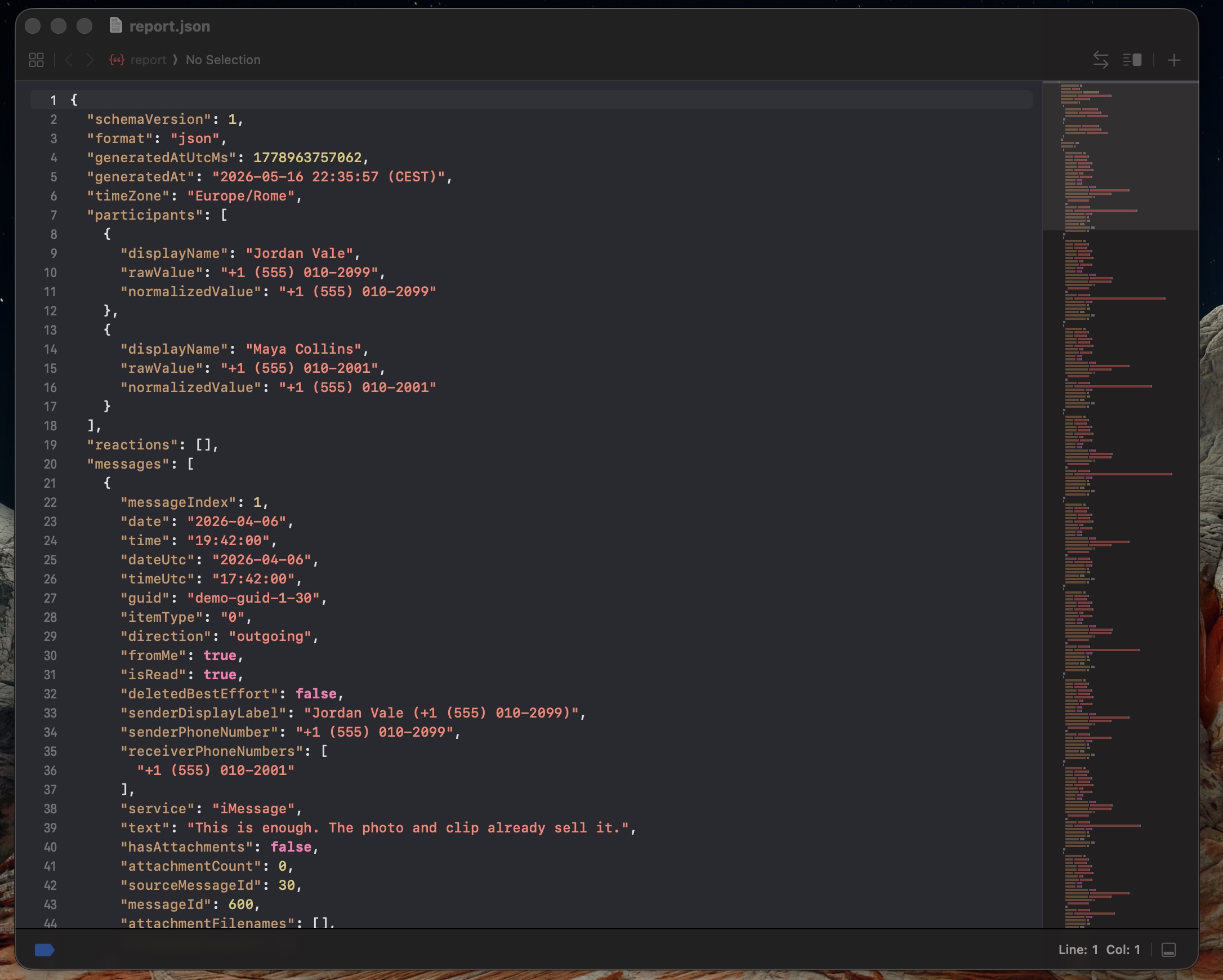
| JSON | Structured data for scripts and specialist review tools | A compatible tool or text editor |
PDF: a document with a fixed layout
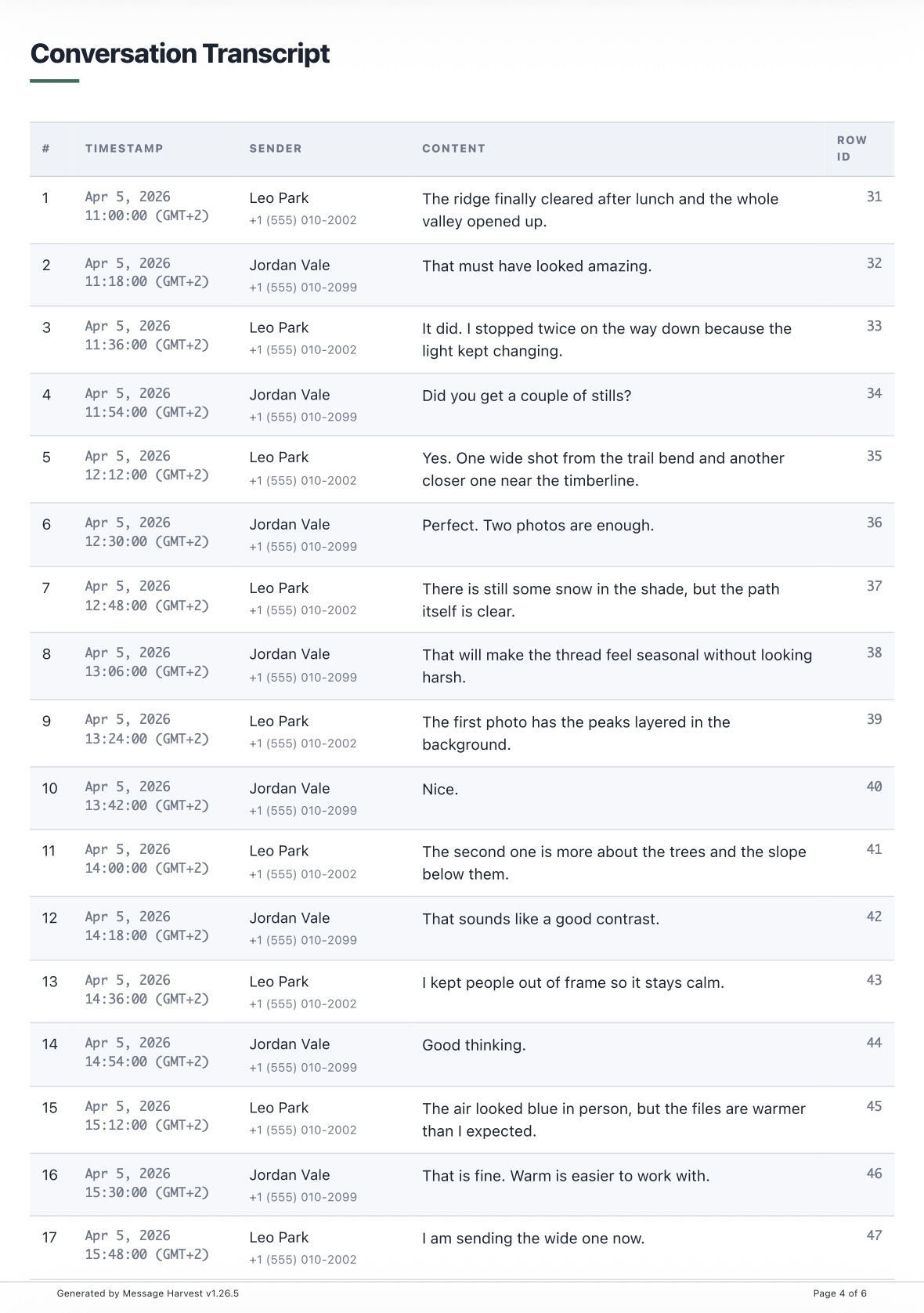
Choose PDF when someone needs to read, print, or file the conversation. A readable layout presents message bubbles; a formal layout emphasizes a structured transcript. Review timestamps, participants, and page breaks in the finished file.
HTML: an archive for your browser
Choose HTML when you want to browse the conversation and retained media on your computer. Keep the generated report together with its accompanying media folder. Moving only the HTML file can break attachment links.
XLSX: message records in a spreadsheet
Choose XLSX to sort or filter records in Excel or another compatible app. It is useful for reviewing dates and senders or creating your own analysis. Use PDF or HTML alongside it when the visual conversation context matters.
Need CSV? MessageHarvest exports XLSX rather than CSV. Open the XLSX file in a compatible spreadsheet app and use that app’s CSV export if needed. Check how dates, line breaks and characters are preserved in the resulting file.
JSON: structured data for other tools
Choose JSON for a processing pipeline or specialist review tool that accepts structured message data. Available fields include participants, message metadata, reactions, and attachment references. It is intended for technical use, rather than as a ready-to-read transcript.
Set up the export for its reader.
- Message order: choose oldest-first for a chronological record or newest-first when reviewing recent messages.
- Report time zone: choose a consistent zone so the reader understands displayed times.
- Date range: focus on a period while keeping the surrounding context you need.
- Media: include retained attachments where available. Missing source files cannot be recreated by an export.
- PDF layout: choose a readable or formal transcript, paper size, and printer-friendly mode.
- Appendices: add optional statistics and an attachment inventory where useful.
- Packaging: paid exports can use ZIP packaging, with optional password protection.
Check the file before you share it.
Open the export, verify the participants and date range, and inspect a few messages and attachments against the source. A file hash can help detect later changes to a file; it does not independently establish that a conversation is authentic or complete.
For a specific task, continue with PDF export, printing, or archiving message history.