
Quick answer
From an iPhone backup to an iMessage conversation you can keep.
- Create or open a local iPhone backup on your Mac.
- Browse or search the messages in that backup and open the right conversation.
- Choose the date range and export settings you need.
- Export as PDF, HTML, Excel (XLSX), or JSON, then open and verify the saved file.
MessageHarvest requires an Apple Silicon Mac and macOS 12+. The free trial lets you inspect and export the latest 6 messages per conversation; full exports cost $19 for one source iPhone, paid once.
What You Need to Export iMessages from a Backup
MessageHarvest is a Mac app for working with iMessage and SMS conversations stored in a local iPhone backup. It lets you browse conversations, search message text, narrow the dates, and export the records without uploading message content. It does not read the Messages database on your Mac and it cannot download an iCloud backup.
- An Apple Silicon Mac (M1 or later) running macOS 12 or later. Intel Macs and Windows are not supported.
- An iPhone and USB cable, or an existing local backup. Backups created by MessageHarvest, Finder, or iTunes can be used.
- The backup password when the local backup is encrypted. This is the password chosen when the backup was created, which may differ from your Apple Account password.
- Enough free storage for a new local backup and the exported files, especially when conversations contain many photos or other attachments.
Use the free trial to open the backup and confirm that the conversation, dates, and attachments you need are actually present. Trial mode shows the latest 6 messages in each conversation and can export those visible messages to PDF, HTML, XLSX, or JSON. Check the full system requirements before installing.
How to Create an iPhone Backup on Mac
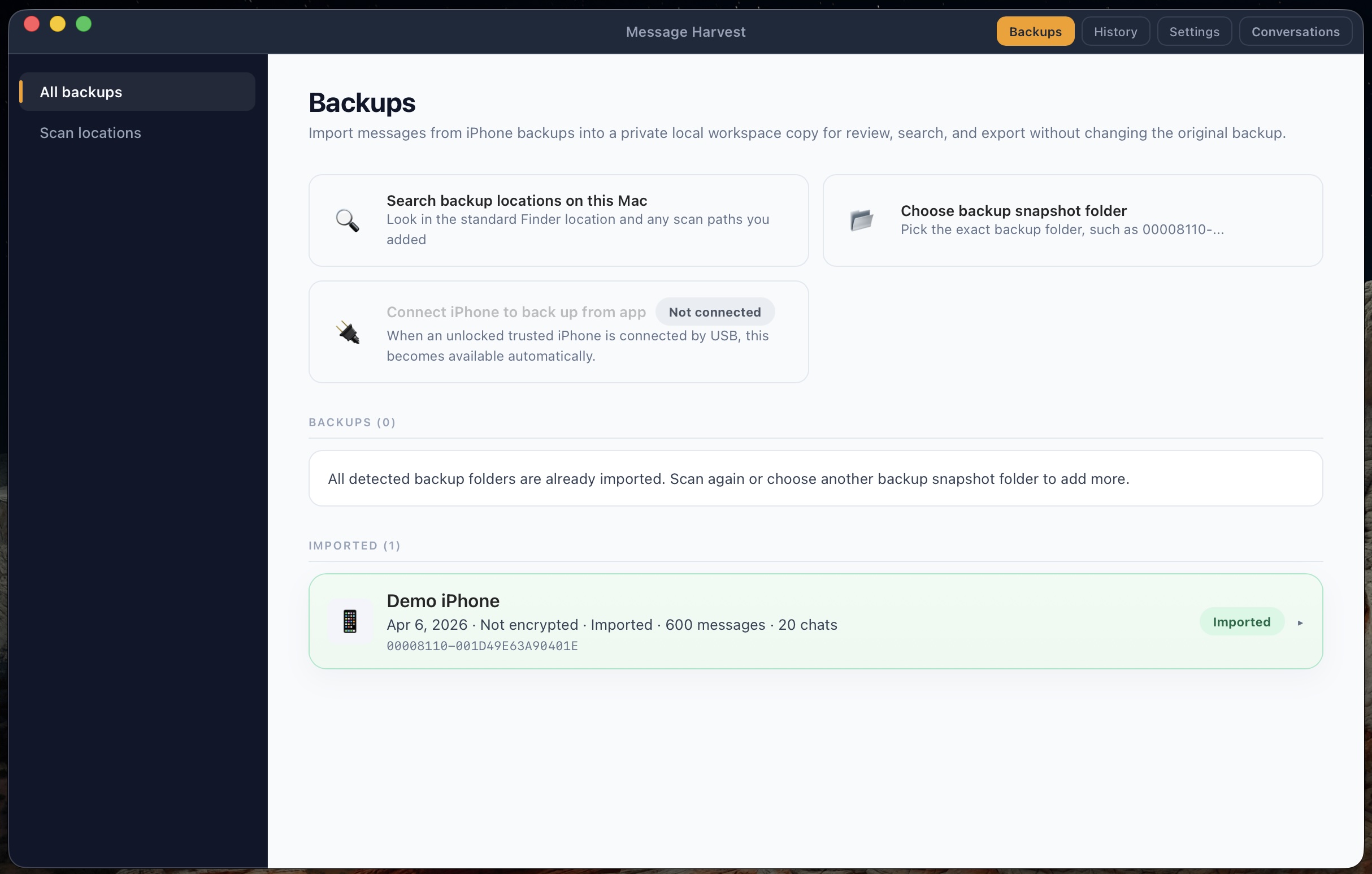
Create a fresh local backup in MessageHarvest
- Connect the iPhone to your Mac with a USB cable.
- Unlock the iPhone and approve the trust prompt if one appears.
- Open MessageHarvest, go to Backups, and choose the connected iPhone.
- Follow the prompts and wait for the backup and message import to finish.
The time required depends on the amount of data and the USB connection. The in-app workflow can clean up temporary backup files it no longer needs after import. Keep a separate Finder backup if you need a complete device backup for long-term preservation.
Create a local iPhone backup with Finder
Connect and unlock the iPhone, select it in the Finder sidebar, open General, choose to back up the iPhone’s data to this Mac, and select Back Up Now. If you enable encryption, record the password somewhere safe. Apple explains the complete process in its Finder backup instructions.
Open an existing Finder or iTunes backup
Open MessageHarvest and select the backup from the available list. If the backup is stored elsewhere, choose its folder. Finder normally stores iPhone backups under ~/Library/Application Support/MobileSync/Backup/. Compatible iTunes backups can also be imported, including a backup originally created on another computer.
Check the source iPhone and backup date before continuing. Two backups from the same phone can contain different parts of the message history, depending on when each backup was created and what remained on the device.
How to Search iMessage History in an iPhone Backup
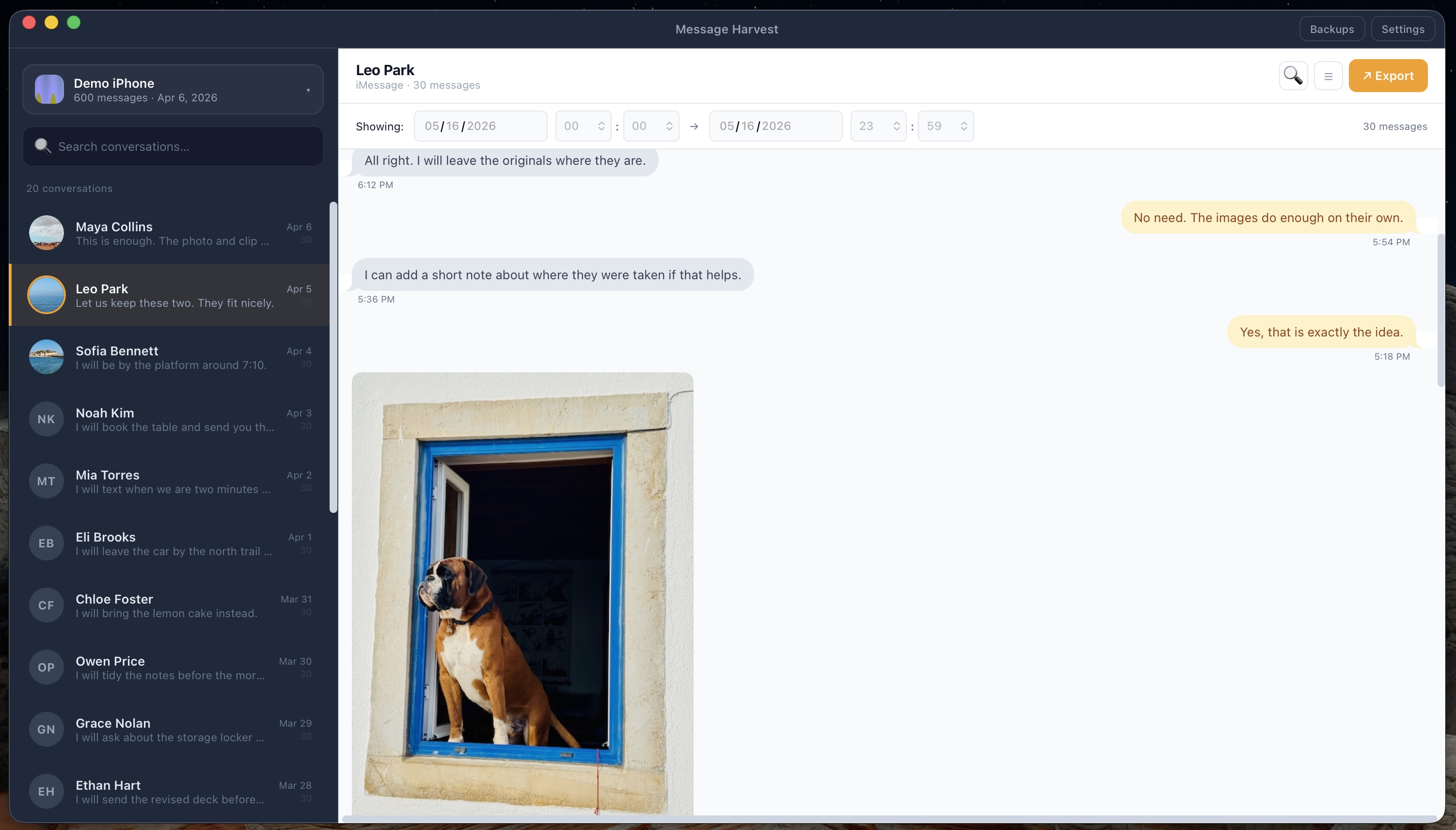
After the backup is imported, MessageHarvest presents the conversations available in that backup. Browse the conversation list or search the imported message text to find a name, phrase, address, reference number, or other remembered detail. Open the matching thread before exporting so you can verify the participants and surrounding discussion.
Find a specific message
Search the message text stored in the imported backup. Use a distinctive word or short phrase, then open the result in its conversation.
Confirm the right thread
Check the contact or participant details, especially when similar names or multiple group conversations appear in the backup.
Narrow the period
Use the conversation date controls to focus on the period you need without losing track of where that exchange sits in the thread.
Review before exporting
Read enough messages before and after the match to preserve the context required by you, the recipient, or your adviser.
Step-by-Step: Export iMessage Conversations with MessageHarvest
- Import the correct backup. Enter its password if prompted. Backup decryption and message processing happen locally on your Mac.
- Find and open the conversation. Browse the list or search for remembered message text, then verify the participants and backup date.
- Choose the date range. Include the exchange you need and enough messages around it to preserve context.
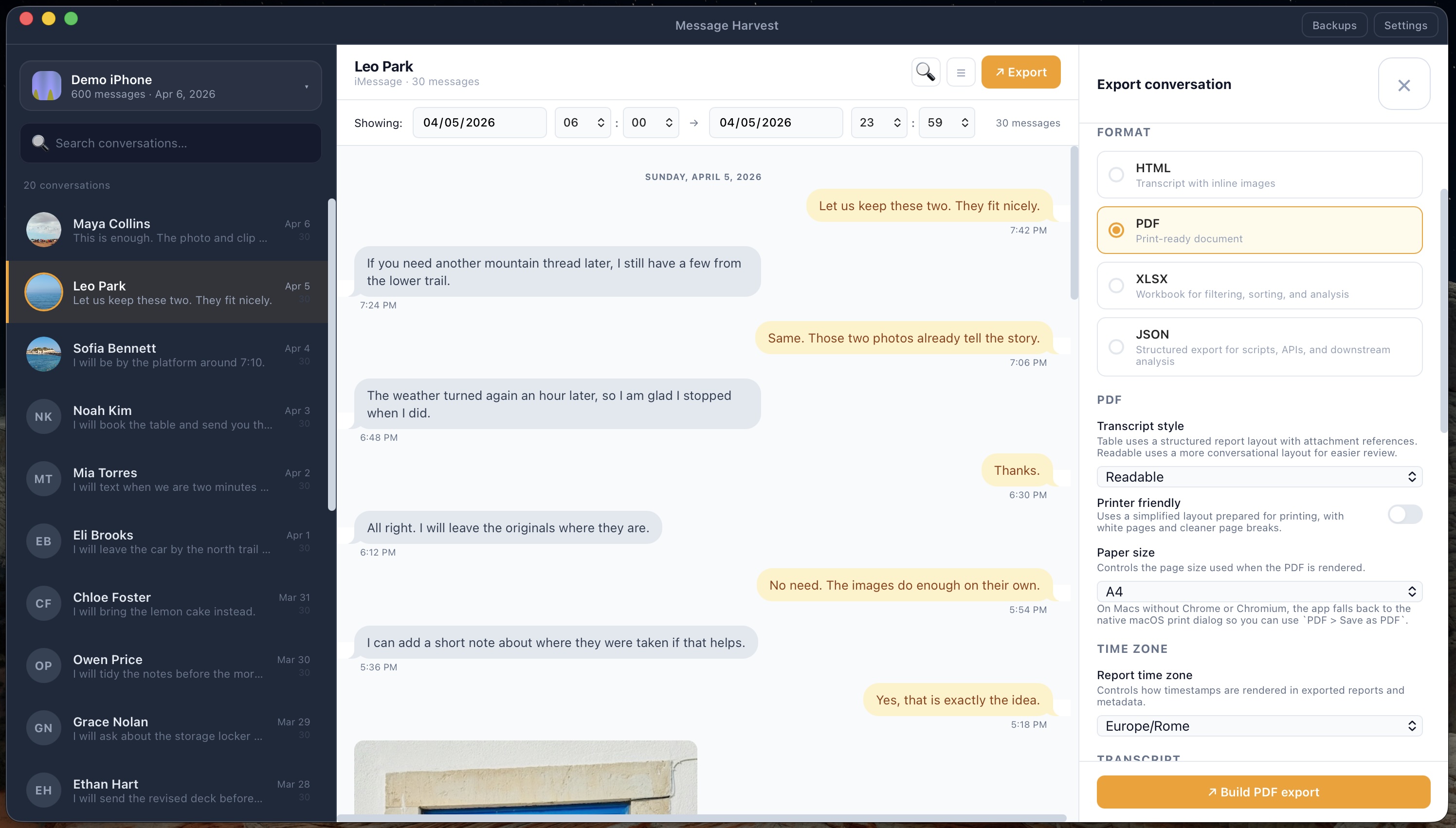
- Select Export and choose a format. Use PDF for a fixed document, HTML for a browsable archive, XLSX for spreadsheet review, or JSON for structured data.
- Review the report settings. Set message order, report time zone, media options, and any available summary or attachment information.
- Configure the chosen format. PDF includes layout, paper-size, and printer-friendly options; other formats provide settings suited to their output.
- Save and inspect the result. Check the first and last messages, participants, timestamps, and retained attachments before sharing or archiving it.
A paid license unlocks full conversation viewing and exports for the licensed source iPhone. You can install the app on multiple compatible Macs. Device-seat terms explain the permanent assignment to each source iPhone.
What an iMessage Export Can Include
The exact output depends on the selected format, export settings, and what the source backup contains. Review the generated file rather than assuming that data visible on the phone was retained in the backup.
Message text and direction
Keep the readable sequence of incoming and outgoing messages from the chosen conversation and date range.
Timestamps and time zone
Include message dates and times using a consistent report time zone so the displayed chronology can be understood.
Participant details
Retain available participant identifiers and conversation information that help distinguish the exported thread.
Available attachments and records
Include retained photos or attachment references where available. Some formats can also carry structured metadata, reactions, inventories, or optional SHA-256 hashes.
See What the Finished Export Looks Like
Open a real sample before installing anything. The sample uses fictional messages from a generated demo backup, so you can inspect the layout without exposing anyone’s private conversation.
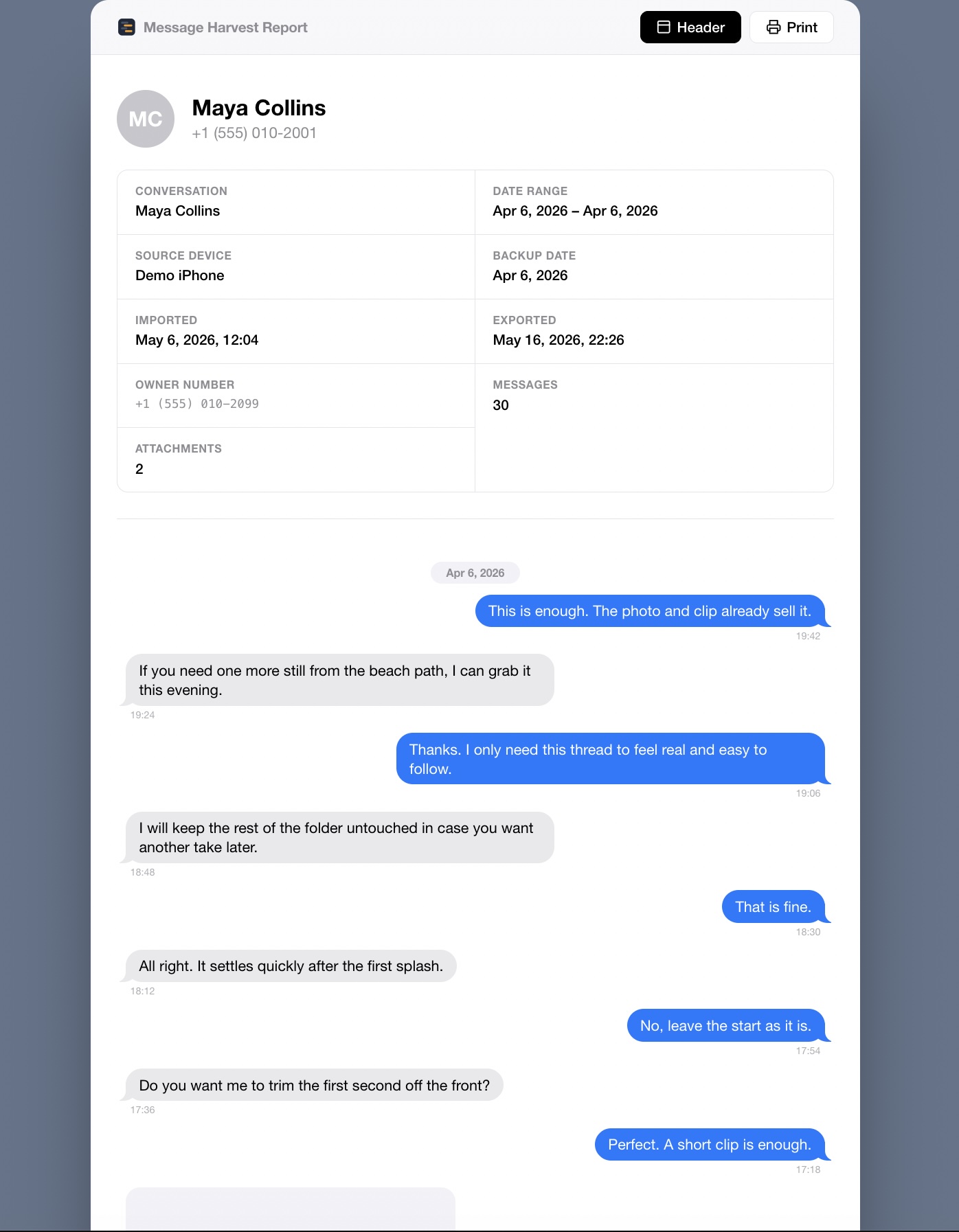
An archive you can browse
Open a conversation in your browser with retained media.
Explore sample HTMLThese examples use a generated demo backup. Your export depends on the messages and attachments present in your backup.
iMessage Export Format Comparison: PDF vs. HTML vs. XLSX vs. JSON
| Format | Choose it for | Open it with |
|---|---|---|
| A fixed document for sharing, printing, or review | Preview or a PDF reader | |
| HTML | A readable conversation archive with retained media | A web browser |
| XLSX | Sorting and filtering message records in a spreadsheet | Excel or another compatible spreadsheet app |
| JSON | Structured data for scripts and specialist review tools | A compatible tool or text editor |
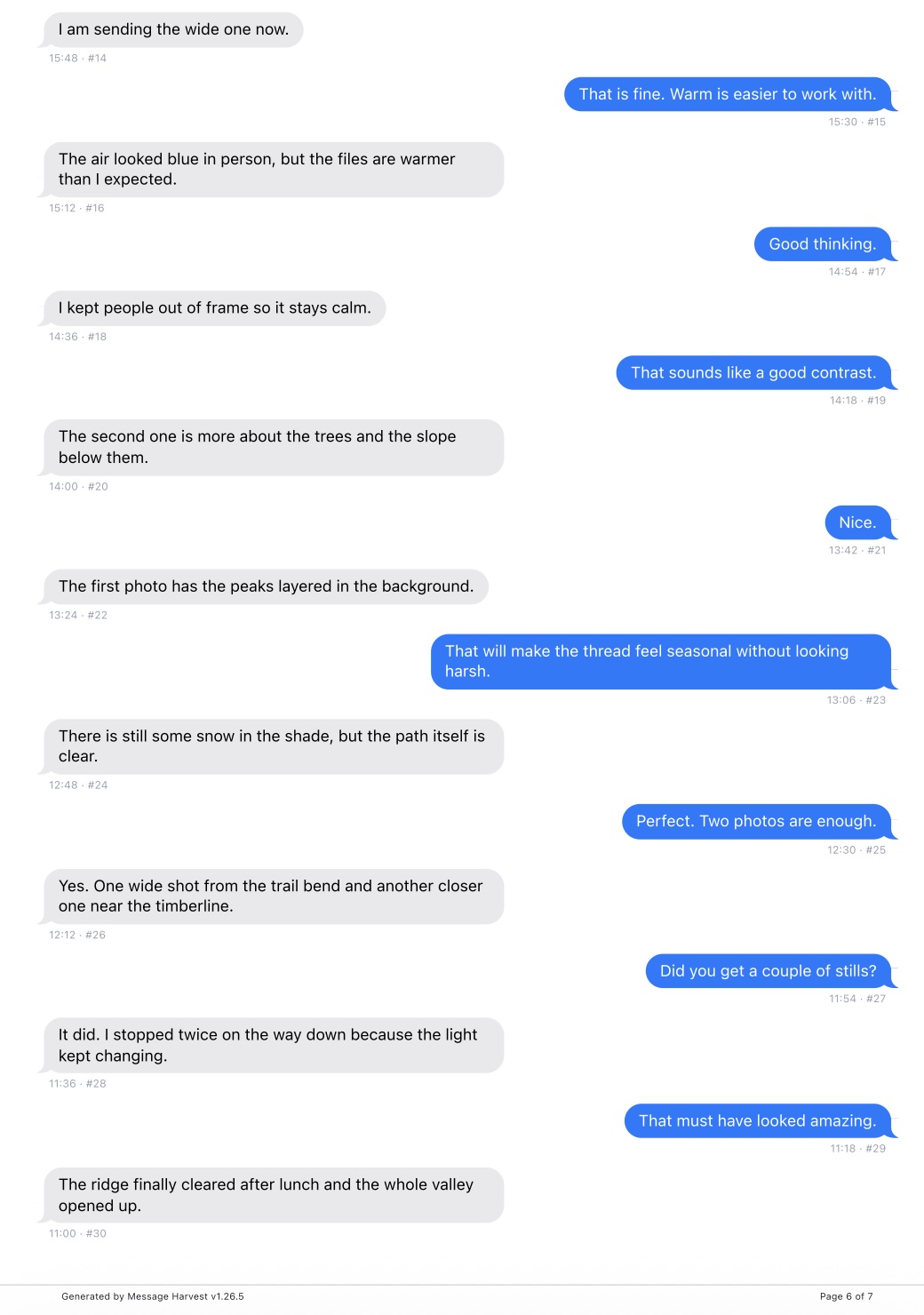
PDF for a fixed document
Choose PDF when the conversation needs a consistent page layout for reading, printing, sharing, or review. Inspect page breaks, timestamps, participants, and retained photos in the finished document.
HTML for a browsable conversation archive
Choose HTML when you want to open the conversation in a web browser. Keep the generated report and its accompanying media folder together so retained attachment links continue to work.
XLSX for sorting and filtering message records
Choose Excel (XLSX) when dates, senders, or other exported fields need to be reviewed in rows. Use PDF or HTML alongside it when the visual conversation context also matters.
JSON for structured processing
Choose JSON when another compatible tool or script needs structured message data. It is intended for technical workflows rather than as the primary document someone will read.
Compare the layouts and export options in detail or continue with focused instructions for saving iMessages as PDF, printing a conversation, and keeping a message archive.
Tips for Using Exported iMessages in Legal and Court Settings
Ask the recipient which dates, participants, layout, and supporting information they need. Preserve the original backup and original export separately from annotated, highlighted, or redacted working copies. Use a consistent report time zone and retain enough surrounding messages to explain the exchange.
MessageHarvest organizes data from the selected backup; it does not certify authenticity, completeness, or admissibility. File hashes can help detect later file changes, but they do not establish those legal conclusions. Follow the legal-review workflow and ask your lawyer which records are appropriate for your matter.
If Your Backup or Messages Are Missing
The backup does not appear
Confirm that it is a local computer backup, that it finished successfully, and that you selected the correct folder. If macOS blocks access to a protected folder, check MessageHarvest’s permissions in System Settings → Privacy & Security → Full Disk Access, then reopen the app.
Search cannot find an older message
Search covers the message data imported from the selected backup. Check the backup date, the source iPhone, spelling, and active date range. Try a shorter or more distinctive part of the phrase. If the message is not in that backup, searching cannot recover it.
Older messages or photos are absent
Check whether the data was present when the backup was created. Messages in iCloud and attachment download state can affect what is available locally. A newer backup cannot recover messages deleted before it was made. An older backup may contain them, but only if they were included at that time.
The trial shows only a short part of a thread
The latest-6-message preview is the trial limit. A license removes that limit for the assigned source iPhone; it cannot add messages that are missing from the backup.
The encrypted backup will not open
Use the original backup password. MessageHarvest cannot bypass or recover it. Avoid deleting an existing backup while you troubleshoot. Contact support with the app version, macOS version, and the exact error text.
Frequently Asked Questions
Can I export iMessages from an encrypted iPhone backup?
Yes. Enter the password chosen when the backup was created. Decryption and message processing happen locally on your Mac.
Do I need iCloud to export my iMessage history?
No. MessageHarvest reads local backup files and does not contact iCloud. Data stored only in iCloud may be absent from the local backup, so inspect it before purchasing.
Can I search iMessage history by keyword?
Yes. Search the message text imported from your local iPhone backup, open the matching conversation, and review the participants, dates, and surrounding context before exporting.
What is the difference between exporting iMessages as PDF versus HTML?
PDF has a fixed page layout for printing and sharing. HTML is a browsable report for a web browser; keep its accompanying media folder alongside it.
Can I export a whole conversation?
Yes, with a license for the source iPhone, you can export the conversation available in that backup. Check the start and end dates and any active date filter. Completeness still depends on the source backup.
Can I export SMS as well as iMessage?
Yes. MessageHarvest supports iMessage and SMS conversations when those records are present in the local iPhone backup.
How do I save a long text thread without taking screenshots?
Open the local backup, find the conversation, check the date range, and export it to PDF or HTML. You do not need to capture each screen. Learn how to keep an entire conversation.
Will the export include dates and photos?
The transcript can include timestamps and media retained in the backup. Choose a consistent report time zone and inspect the output. Missing source photos cannot be recreated. See a real PDF with timestamps and photos.
Can every exported message show a timestamp?
Exports can include a timestamp for each exported message. Choose the report time zone before generating the file and verify several messages in the finished output.
Does my iPhone need to stay connected?
Only while making a new backup from the connected device. You can browse, search, and export an existing compatible local backup without the phone connected.
Are my messages uploaded?
No. Message content, attachments, backup decryption, and export processing stay on your Mac. Licensing, update checks, and checkout use the internet.
Can I prepare a document for my lawyer?
You can export readable records with dates, participants, available metadata, and retained attachments. See the legal-review workflow. Your lawyer should advise which records and layout are needed for your matter.