
Save an entire text conversation outside your iPhone.
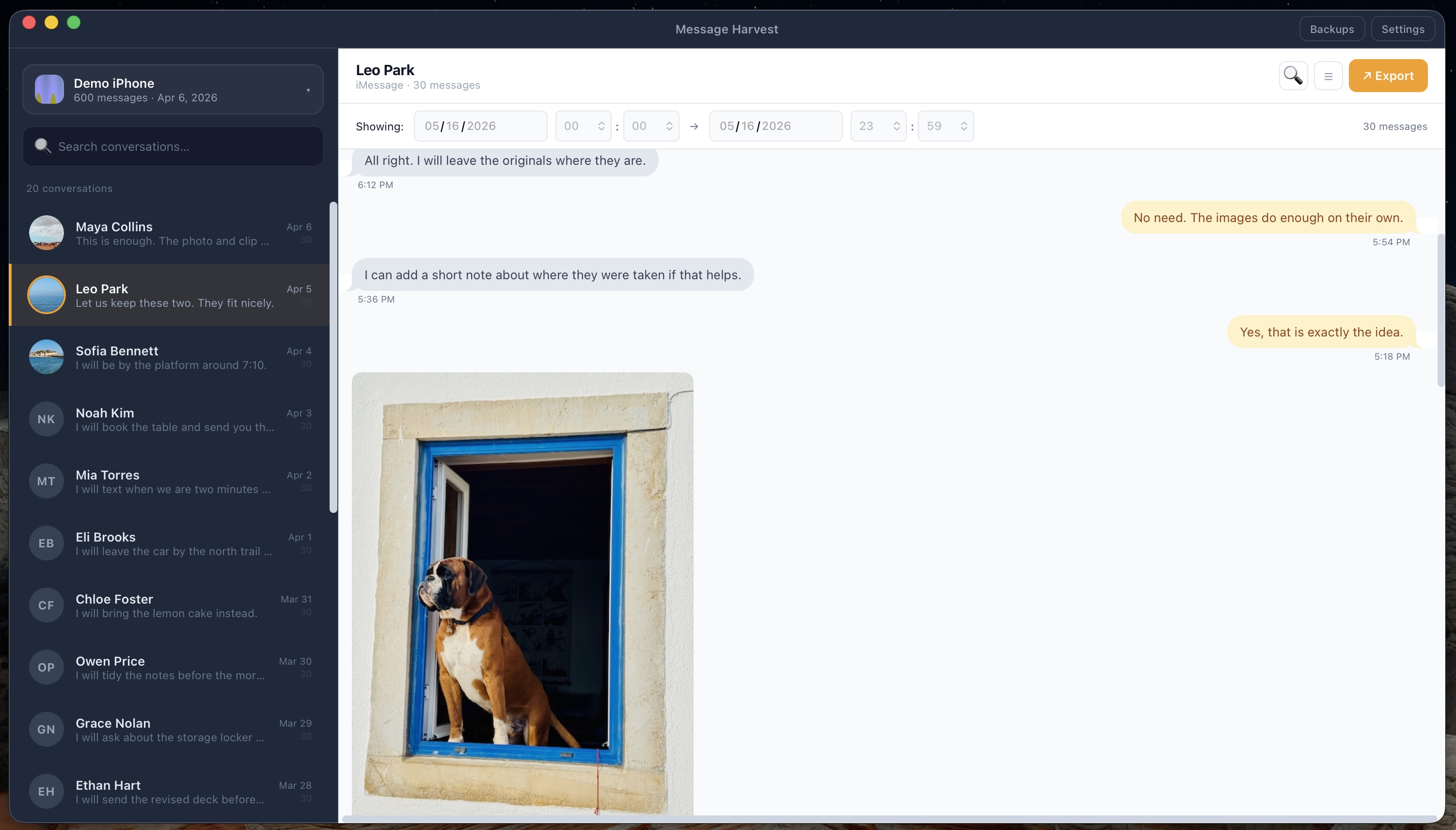
A long conversation is difficult to keep as a collection of screenshots. With MessageHarvest, open a local iPhone backup, select the conversation and export it as HTML or PDF. The saved files can be opened independently of the app.
Check the earliest and latest messages you need and remove any date filter that would leave them out. Full conversation exports require a license; the free trial exports the latest 6 messages per conversation. The archive can include only what is in the backup.
Keep messages from someone important to you.
If you are preserving messages from a loved one, keep the conversation together with the photos and other attachments that give it meaning. HTML is useful for browsing; a PDF gives you a document to read, share or print.
You can work from a backup of your own iPhone containing your exchanges. This does not require access to the other person’s phone, and MessageHarvest cannot unlock their device or account. Make a second copy of the export and check that its attachments still open after moving it.
Your archive can only contain what is in the backup.
Check the backup date and source iPhone. If a conversation was deleted before that backup was made, it will not reappear just because you export it. An older backup may contain a different part of your history.
MessageHarvest reads local iPhone backups; it does not download messages from your Apple Account or restore deleted messages from Apple’s servers. If you need to create a backup, start with the step-by-step export guide.
Build an archive you can actually open.
- Import the right backup. Keep a separate copy of a source backup you want to preserve.
- Review the conversation list. Search for important exchanges and check the dates available.
- Choose the conversations and date range. Confirm that you are not accidentally filtering out older records.
- Export to HTML or PDF. Add XLSX or JSON if you also need structured data.
- Open the result. Test a few attachment links and check the beginning and end of the conversation.
Choose a format you can keep using.
| Format | Choose it for | Open it with |
|---|---|---|
| A fixed document for sharing, printing, or review | Preview or a PDF reader | |
| HTML | A readable conversation archive with retained media | A web browser |
| XLSX | Sorting and filtering message records in a spreadsheet | Excel or another compatible spreadsheet app |
| JSON | Structured data for scripts and specialist review tools | A compatible tool or text editor |
For most personal archives, start with HTML. Keep the report and its media folder together. A PDF is a useful companion when you want a fixed document to share or print.
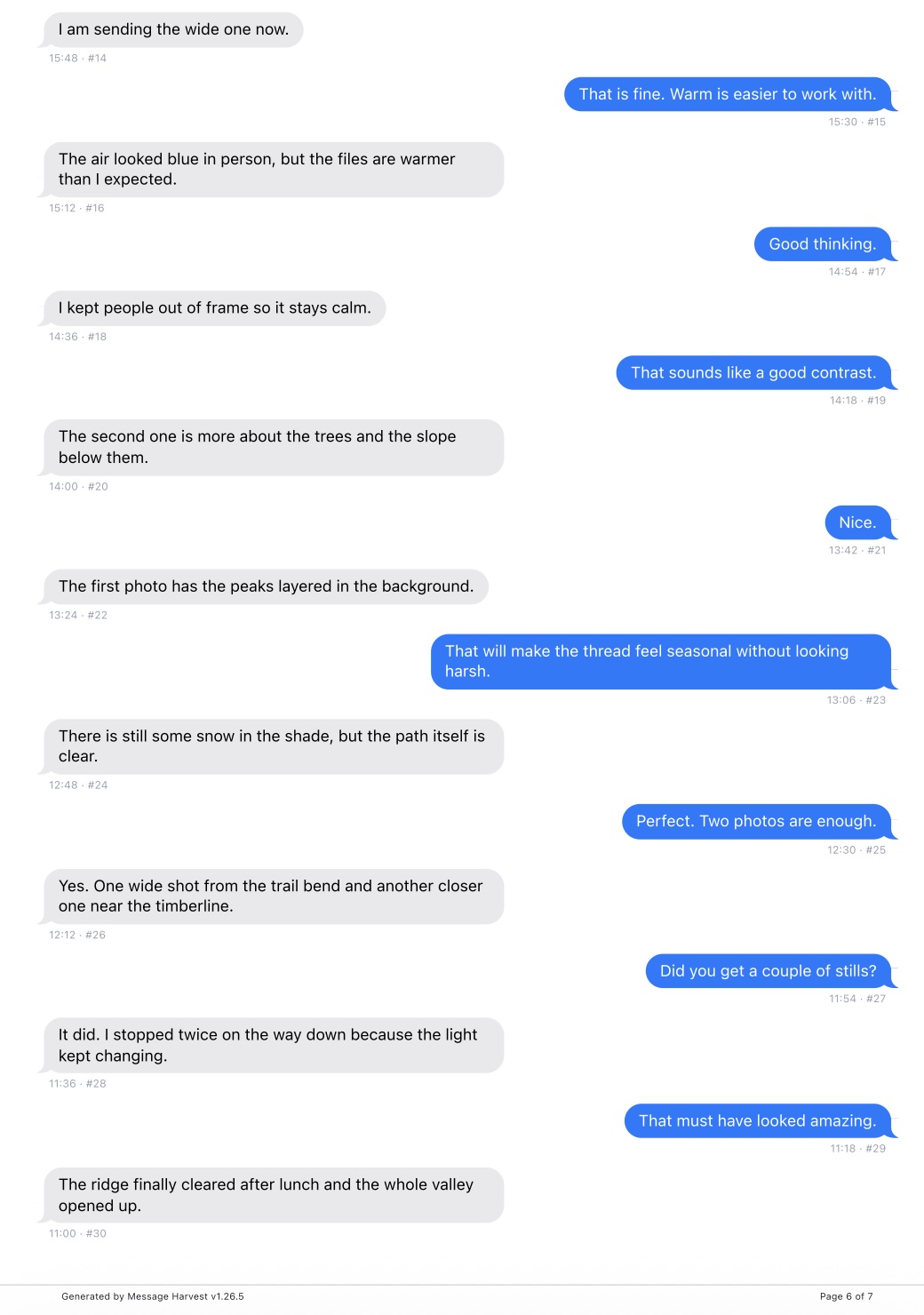
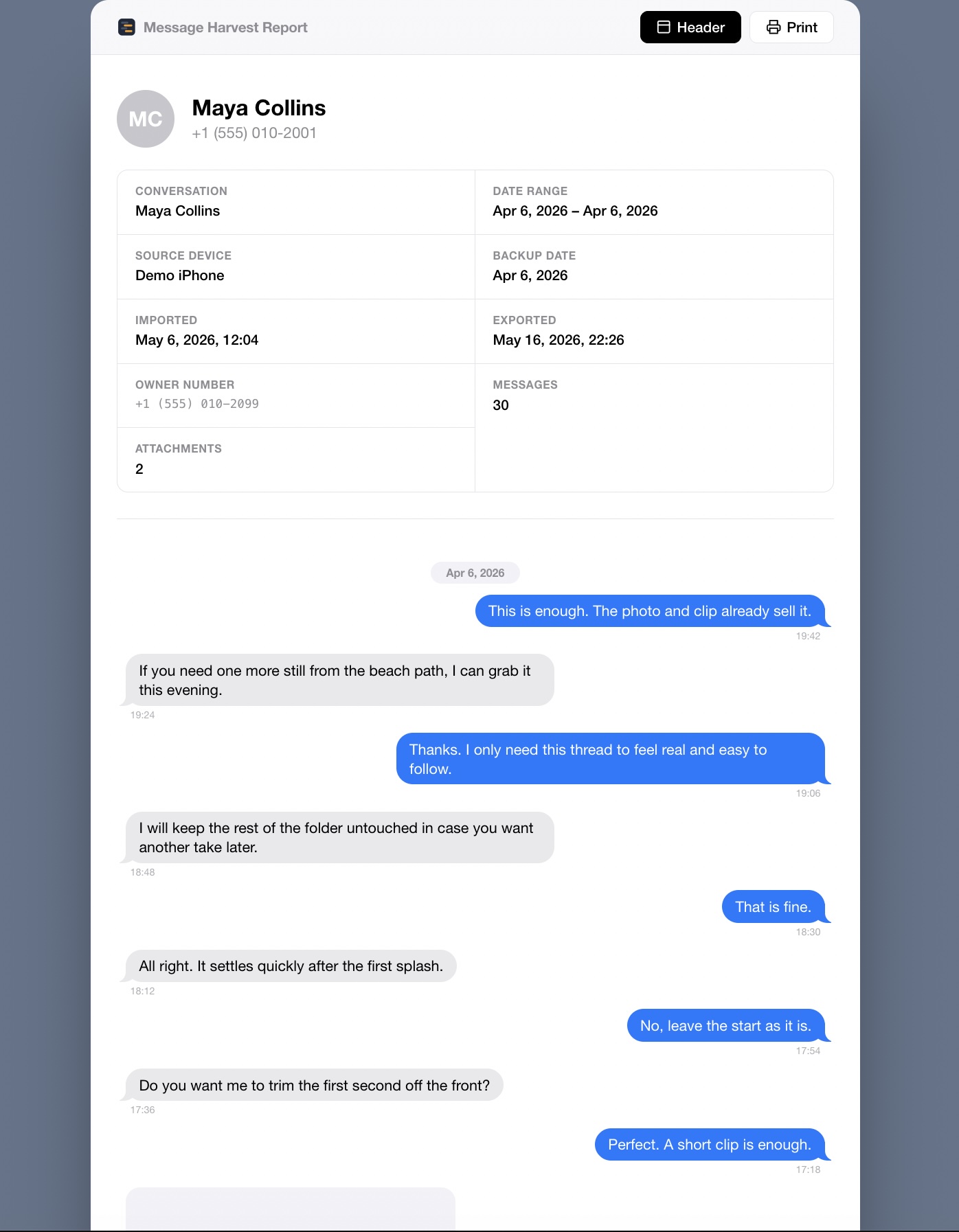
An archive you can browse
Open a conversation in your browser with retained media.
Explore sample HTMLThese examples use a generated demo backup. Your export depends on the messages and attachments present in your backup.
Before deleting messages or replacing your phone
Open your exported files and verify the dates, participants and attachments you want to keep. Retain a separate source backup and a second copy of important exports. If Messages in iCloud is enabled, deletion can synchronize across devices; do not assume another device remains an independent copy. Read Apple’s message-deletion guidance.
A PDF or HTML archive is a readable record. It cannot be imported back into Messages to restore a conversation on a replacement iPhone.
Keep the archive and its context together.
- Use a clear folder name with the source device, backup date, and export date.
- Retain the source backup separately if you may need to repeat the export.
- Keep a second copy of important archives on storage you control.
- Protect sensitive files with appropriate storage permissions or encryption.
- Check the archive again after moving it to another drive. HTML media links depend on the accompanying folders.
Do not delete the original messages or backups until you have checked the exported files and made the copies you need.
Common questions
Is this the same as Messages in iCloud?
No. Sync keeps messages coordinated between devices. An exported archive is a separate set of files you can keep.
Can I save messages from an old iPhone?
You can import a compatible local backup from that iPhone. Access to encrypted backups requires the backup password.
Does one license cover a replacement iPhone?
A device seat is permanently assigned to one source iPhone. A different iPhone requires another seat, even if the conversations are similar.
Can the app guarantee all my history is present?
No. Availability depends on the backup. Check the dates and messages you need before relying on an archive.