How to Print iMessages from iPhone
If you need to print iMessages from an iPhone, the cleanest way is not screenshots. It is to open the conversation from a local backup on your Mac, export it to PDF, and print the finished file. That gives you a more complete record, a better layout, and something you can save after printing too.
Print from a PDF that preserves the conversation flow instead of trying to manage dozens of screenshots.
Quick Answer
The best way to print iMessages is to export the conversation to a PDF on your Mac, then print the PDF. That gives you a complete document you can review before printing and keep afterward as a saved copy.
Best output
PDF is usually the strongest choice because it preserves the layout and prints predictably.
Best source
A local iPhone backup on your Mac, not a live copy-paste attempt from the Messages app.
Best use cases
Printing for personal files, legal review, school or work records, or any time you need a readable paper trail.
Step-by-Step: Print iMessages the Clean Way
This workflow is built around producing a clean printable record instead of a pile of screenshots.
Open the iPhone backup on your Mac
Create or load a local iPhone backup, then open it in MessageHarvest. This is the step that makes older conversation history accessible for export and printing.
Review the conversation before exporting
Browse the thread on your Mac and make sure the part you need is actually present in the backup. If you need older messages, you may need an older backup if those messages were already deleted before the newest backup was made.
Export the conversation to PDF
Choose PDF as the export format, then save the file locally on your Mac.
Open the PDF and print it
Preview the PDF first, then print from Preview or any normal Mac PDF viewer. This gives you one coherent document instead of manually assembling image files.
What the Printable Report Looks Like
These example images come from generated sample exports, which lets us show the real print layout without using private conversations.
Try the sample output: download the sample PDF report or inspect the sample HTML report. These demos are sanitized, so they do not show every metadata field that a full export can include.
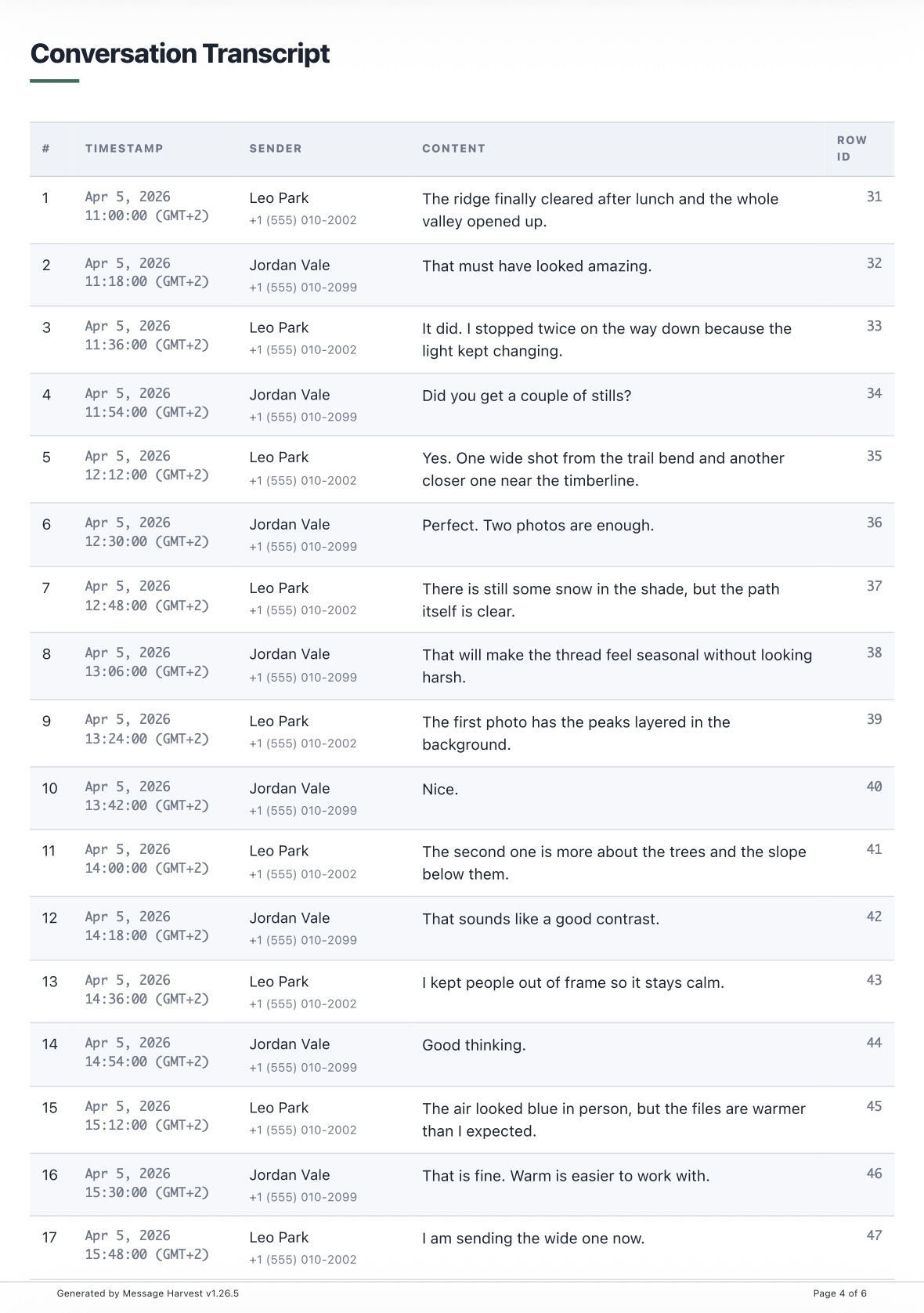
Main PDF Conversation
The core conversation pages are built to be readable, stable, and easy to hand off.
Formal PDF Report
Useful when you want a more report-like presentation style for review, filing, or professional handoff.
Supporting Appendix
Additional pages can include context or statistics that make the printed record more useful.
Why PDF Beats Screenshots for Printing
| Method | Problem | Better Alternative |
|---|---|---|
| Screenshots | Hard to organize, fragmented, awkward to print in order, and easy to lose context. | Export the conversation to PDF, then print the finished file. |
| Manual copy-paste | Usually strips formatting, breaks chronology, and turns long threads into cleanup work. | Generate a PDF directly from the backup-based conversation review. |
| PDF export | None of the screenshot chaos. You still need the right backup, but the print result is much stronger. | Use this when the conversation needs to be printed cleanly and saved afterward. |
The downloadable sample PDF is intentionally generic. A normal export can include additional technical appendix details, participant metadata, timestamps, and other report fields that are not shown in the public demo file, and it can be presented in a more formal report style when needed.
Need the broader export workflow too? Use How to Export Messages from iPhone on Mac for the full backup-to-export flow, or Export iMessage for Court if the printout is part of a legal packet.
Print-Focused PDF Options Worth Using
If printing is the goal, a few options make a big difference in how polished the final document feels.
Transcript style
Choose a more formal PDF report layout when you want the document to feel closer to a report than a casual transcript.
Printer-friendly mode
Use a simplified layout with white pages and cleaner page breaks when the export is specifically meant to be printed.
Paper size
Set a paper size such as A4 or Letter so the generated PDF matches the page format you actually print on.
Report time zone
Control how timestamps are rendered in the printed report, which helps when the recipient expects a specific time zone.
Statistics and attachment inventory
Add summary sections, compact metrics, and attachment reference pages when you want the printed packet to carry more context.
ZIP packaging
If you also need to deliver the printable report digitally, bundle the export folder and retained media into a ZIP package alongside the PDF.
Frequently Asked Questions
What is the best way to print iMessages from iPhone?
The cleanest method is to export the conversation to PDF on your Mac and print the PDF. That is much easier to manage than screenshots.
Why are screenshots a bad way to print iMessages?
Screenshots break the conversation into fragments, are harder to organize, and often lose context. A PDF export preserves chronology and is easier to print as a complete record.
Can I print older parts of the conversation too?
Yes, as long as those older messages are present in the backup you open on your Mac. If not, you may need an older backup.
Can I see a sample printable report first?
Yes. Download the sample PDF report to see how a printable export looks before you create your own.
Can I make the PDF more formal or more printer-friendly?
Yes. PDF exports can use a more formal transcript style, a printer-friendly layout, a chosen paper size, and other report options that make the final printout cleaner and easier to hand off.
Download MessageHarvest and Print a Cleaner Record
Install the Apple Silicon Mac build, open the backup, export to PDF, and print a conversation file that is easier to read than a screenshot stack.